User’s Guide, Chapter 1: Installing and Getting Started with music21
If you’re going to use music21, you’ll need to have a copy of it and
Python on your computer. The instructions are slightly different for
each type of computer, so follow the link below and then come back to
the system. For many people, installation is the most difficult step for
a bit.
Your computer |
Instructions |
|---|---|
Mac |
|
Windows |
|
Linux and other systems |
When a new version of music21 is released, you can upgrade by using
the same method that you originally used to install it.
If you want to see if it’s worth installing, keep reading the guide without installing, but if you have installed already, you’ll get more out of the guide since you’ll be able to follow along.
Starting music21
We’ll just see if music21 worked for you. Start Jupyter in your
m21play folder (or wherever you plan to run these tutorials), as the
installation page shows, and in a new notebook type this:
from music21 import *
If you get a warning that “no module named music21” then something probably went wrong above. Try going step-by-step through the instructions above one more time, making sure not to skip anything. 99% of installation errors come from skipping a step above. If you still have a problem, Google for “installation problem music21” or “installation problem mac python module” and see if anything looks familiar. If all else fails, contact the music21list Google Group which might be able to help.
If you didn’t have a problem, which is nearly always the case, then
music21 has worked for you. Test that you can get a score from the
corpus by typing this command:
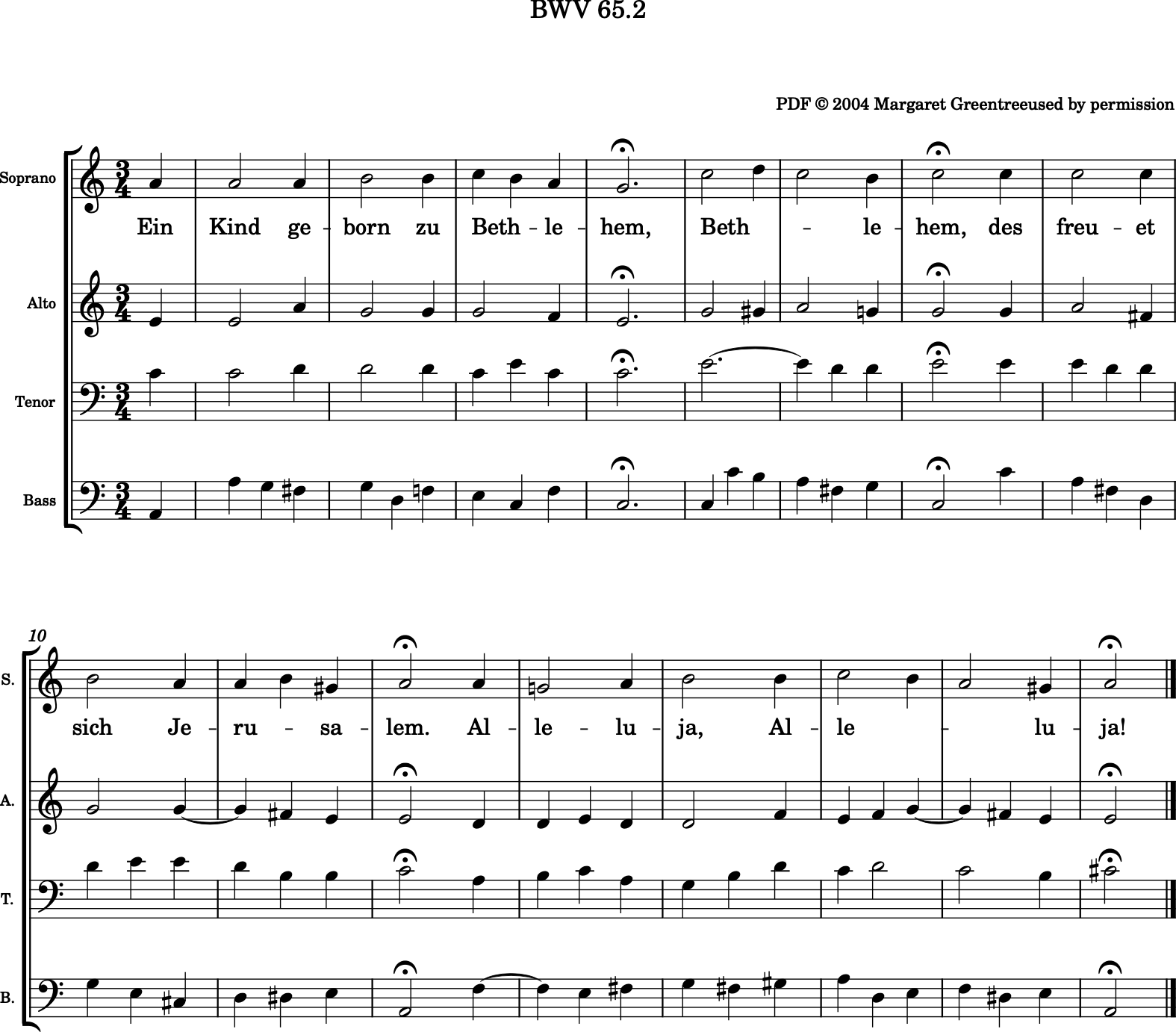
s = corpus.parse('bach/bwv65.2.xml')
Now s represents an entire score of a chorale by J.S. Bach. Type
“s.analyze('key')” to see what music21’s best guess as to its key
is:
s.analyze('key')
<music21.key.Key of a minor>
Now let’s see if you can see scores with music21. If this doesn’t
work, you can skip ahead to
Chapter 8: Installing a MusicXML reader
or just work through the tutorial until you get there without seeing
scores. Type “s.show()”. Assuming your installation and
configuration went as expected, the chorale appears right below, looking
something like what we see here:
s.show()
Again, if you don’t have MusicXML working for you yet, don’t panic,
we’ll give more explicit instructions in a few chapters. For now, let’s
proceed to Chapter 2: Notes.